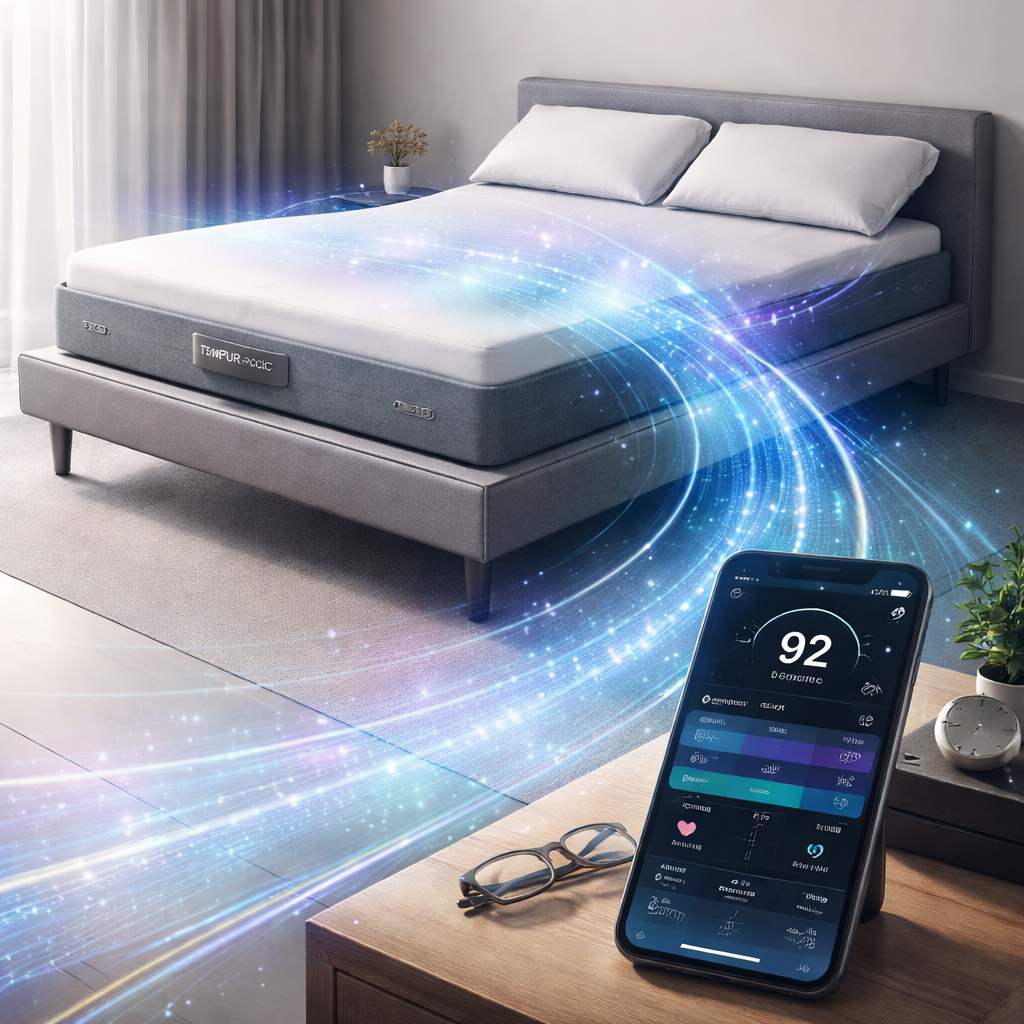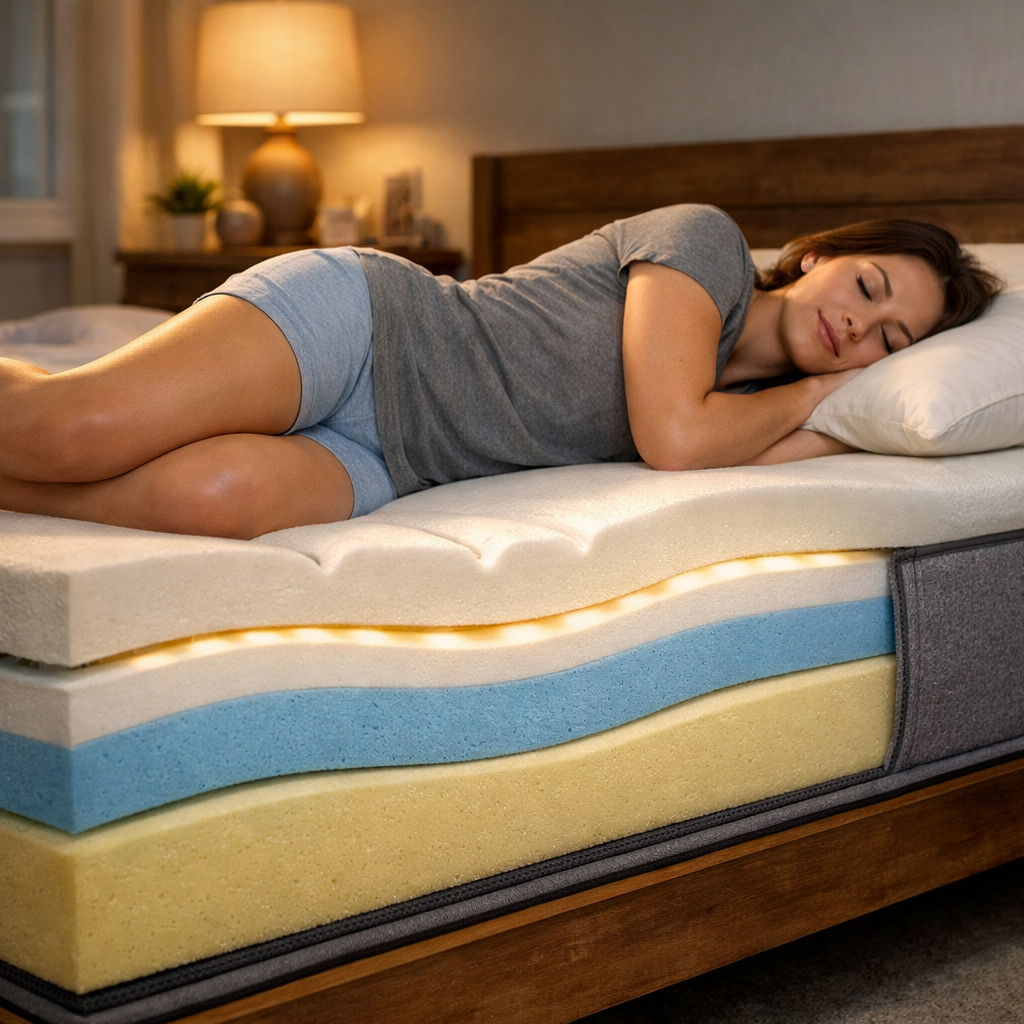
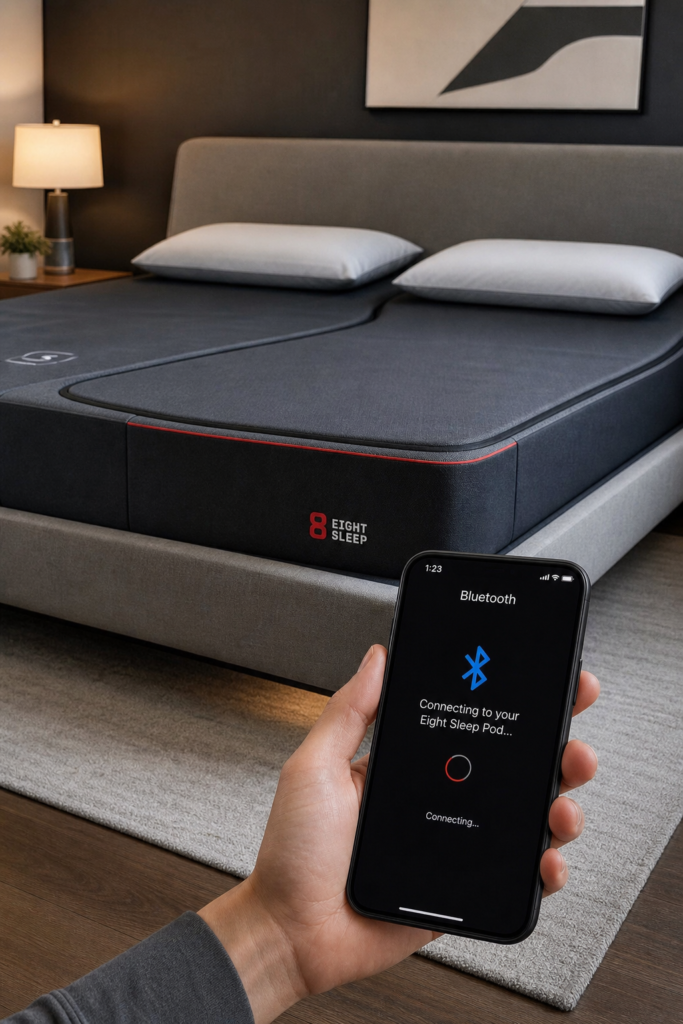
Getting a smart bed feels like stepping into the future, but the setup can feel overwhelming. You’ve bought the tech, you’ve got the app, and now you need a clear path forward. In this guide we’ll walk you through every step you need to get your smart bed sleep tracking app up and running so you can start seeing real sleep data tonight.
Step 1: Check Compatibility with Your Smart Bed
Before you open any app, you need to know if your bed speaks the same language. Most modern smart beds advertise Bluetooth, Wi‑Fi, or proprietary radio modules. If your model isn’t listed in the app’s supported hardware list, you’ll hit a wall later.
Here’s how to confirm compatibility:
- Locate the model name on the bed frame or in the user manual.
- Visit the manufacturer’s website and look for a “Supported Apps” section.
- Check the app store description for a list of compatible devices.
- If you have a smart bed base from a popular brand, verify that the remote control or sensor hub is present.
Most smart beds released after 2020 include a small Bluetooth badge near the headboard. If you can see a blinking light after powering the base, that usually means the radio is active.
Imagine you just unpacked a new premium smart bed base. The box includes a QR code that links to a compatibility checker. Scan it, and the page instantly tells you the mobile operating system version you need. That quick check saves you an afternoon of trial‑and‑error.
And if you’re not sure, reputable sleep research guides break down the built‑in tech for the most popular models. They’re solid references when you need to compare specs.
Step 2: Download and Install the Sleep Tracking App
Now that you know the bed can talk, it’s time to get the software. Most brands ship a dedicated app, but many also work with third‑party sleep trackers.
Follow these steps:
- Open your device’s official app store (the App Store for iOS or the Play Store for Android).
- Search for the official app name of your smart bed (refer to the documentation or manufacturer’s website).
- Check the developer name to avoid look‑alike apps.
- Tap Install and wait for the download to finish.
- Open the app and grant permissions for Bluetooth, location, and health data.
Permissions matter because the app needs to read sensor signals and, if you want deeper insights, sync with your phone’s health tracking system. If you deny a permission, the app will either skip that feature or prompt you later.
For users who prefer a more generic sleep diary, Wikipedia’s overview of sleep trackers lists many popular apps. Those apps can run without a dedicated smart bed, but they won’t capture the mattress‑level data you’re after.
Pro tip: install the app on the same device you plan to use nightly. Switching phones later can cause the pairing process to reset.
Step 3: Pair the App with Your Bed via Bluetooth or Wi‑Fi
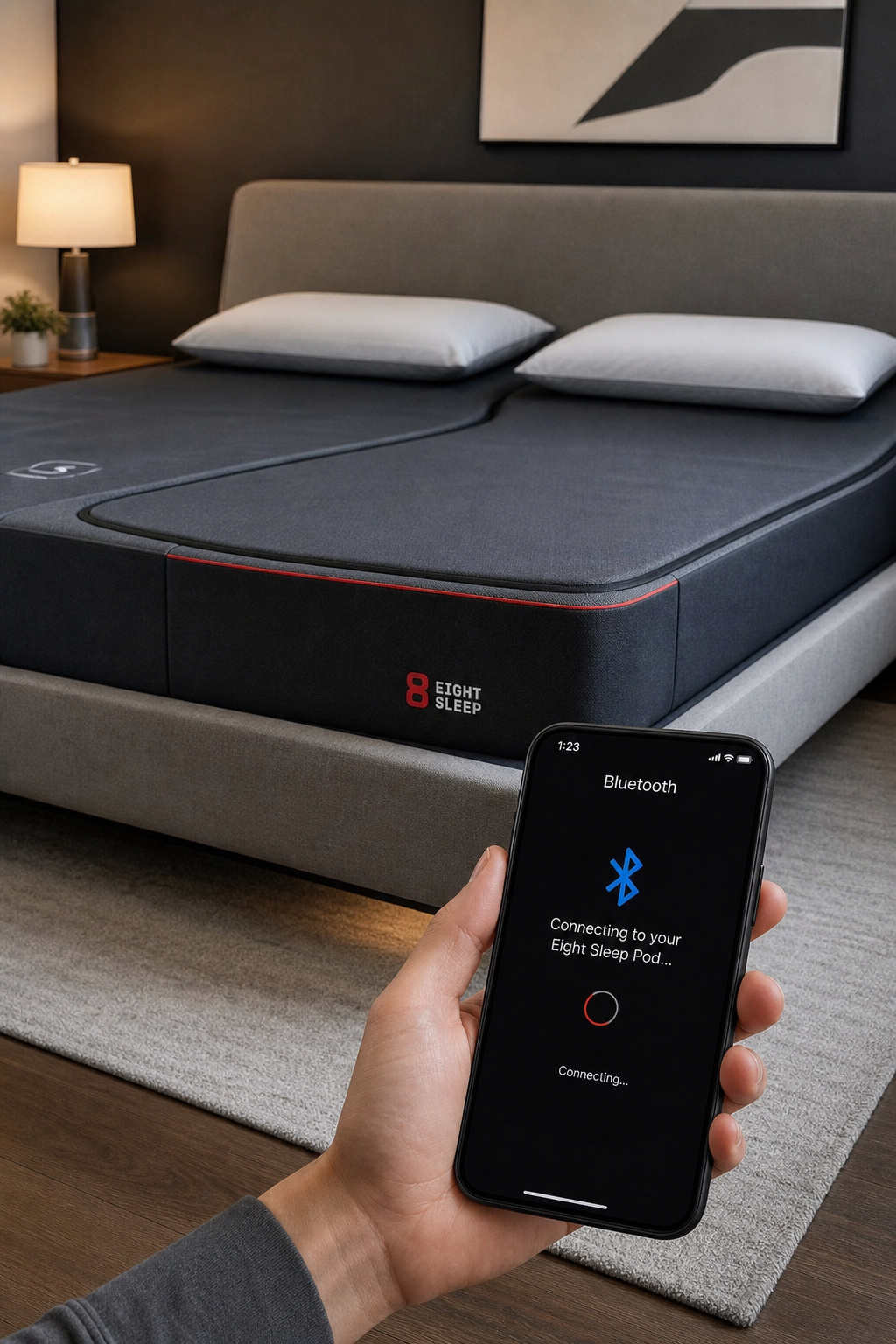
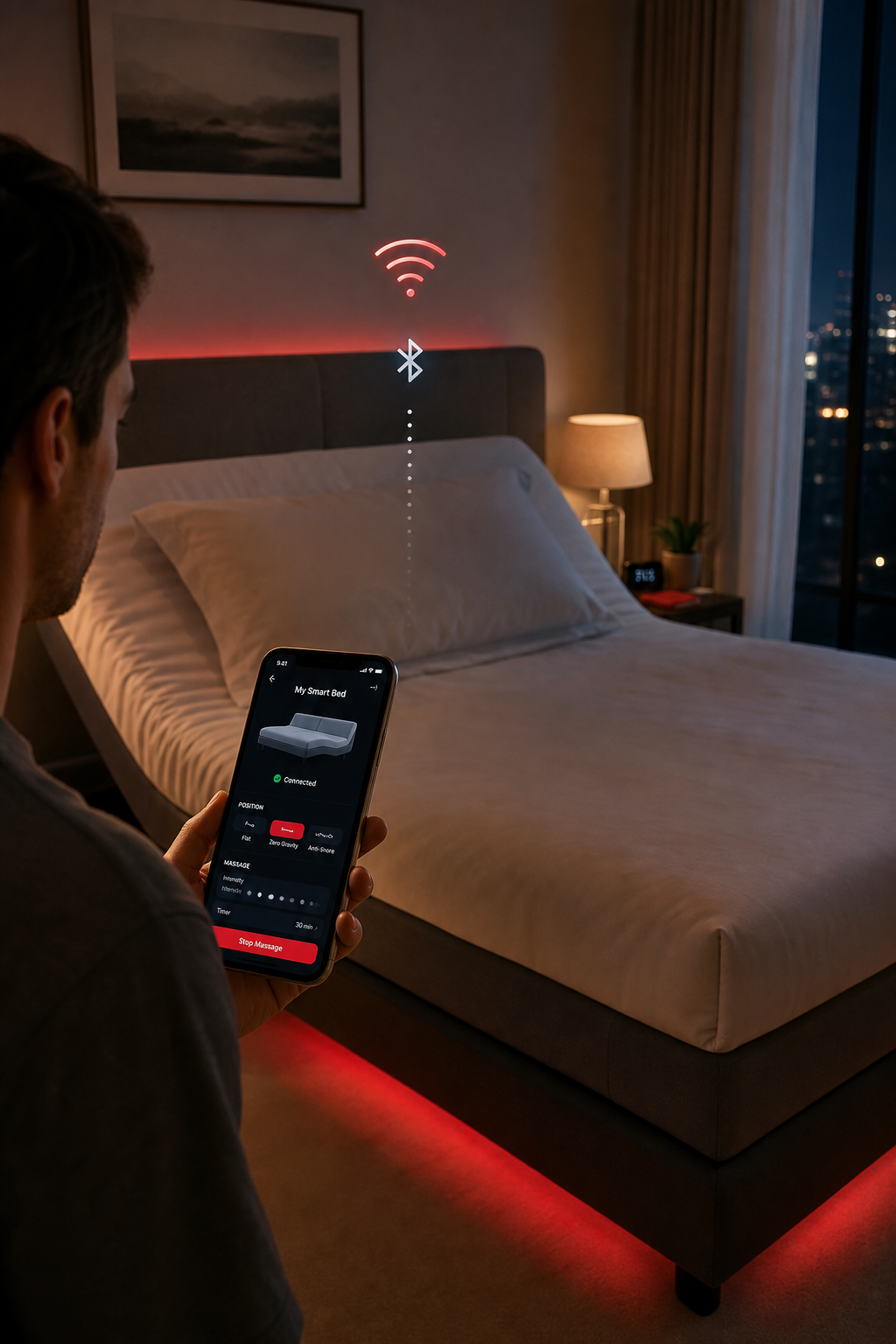
Pairing is the moment where the bed and phone become a team. Most apps guide you through a wizard, but knowing the underlying steps helps if the wizard stalls.
Typical Bluetooth pairing flow:
- Turn on the bed’s radio , often a button on the remote or a power‑on sequence.
- In the app, tap “Add Device” and select “Bluetooth”.
- Watch for a device name that matches your bed model (e.g., “SmartBed-AI”).
- Tap the name, confirm any PIN (usually 0000), and wait for the green check.
If you have Wi‑Fi, the process is similar but you’ll need the network password. Some beds create a temporary hotspot (e.g., “SmartBed_XXXX”) that the app uses to push the Wi‑Fi credentials.
Here’s a quick troubleshooting cheat sheet:
- Make sure the phone’s Bluetooth is on and not in airplane mode.
- Keep the phone within two feet of the bed during the first connection.
- Restart the bed’s power module if the device never appears.
- Check that the router isn’t using a hidden SSID if you’re on Wi‑Fi.
And remember, the first night you pair is often the most fragile. A quick reset of both the bed and phone can clear lingering glitches.
Step 4: Calibrate Sensors and Set Up Your Profile
With a stable connection, the app can start pulling data. Calibration tells the system what “normal” looks like for you.
Most apps ask you to lie still for a minute while the sensors learn the baseline pressure and temperature. After that, you’ll fill out a short profile:
- Height, weight, and preferred sleep position.
- Typical bedtime and wake‑time windows.
- Any health conditions that affect sleep (e.g., sleep apnea).
Why this matters: the algorithms adjust firmness and temperature based on those inputs. If you tell the app you’re a side sleeper, it may raise the pressure on the hips to reduce strain.
Below is a simple calibration checklist you can print out and keep by the bedside:
Real‑world example: a couple with different firmness preferences used the app’s “dual‑zone” feature. After calibrating each side, the bed automatically kept the husband’s side firmer while softening the wife’s side during the night. The result was fewer “I’m too hot” complaints.
For deeper troubleshooting, SmartBeds.net has a guide on the smart bed sleep tracking monitor. It walks you through sensor drift issues and how to reset the module.
Step 5: Customize Alerts, Goals, and Integrations
Now the data is flowing, it’s time to make it useful. Most apps let you set sleep goals, enable smart alarms, and push data to health platforms.
Key customizations:
- Smart Alarm:Choose a wake‑up window (e.g., 30 minutes before your set alarm) so the bed nudges you during light sleep.
- Sleep Score Targets:Set a nightly score goal (e.g., 85 %). The app will suggest temperature tweaks or firmness adjustments.
- Integrations:Link to health platforms, fitness tracking services, or third‑party services for cycle‑based alarms.
When you enable syncing with a health platform, the app can pull your step count and use it to adjust bedtime recommendations. For Android users, similar fitness tracking services offer a similar bridge.
Remember to review privacy settings. The study on sleep‑app privacy notes that many apps share data with third parties unless you turn off that option.
Finally, test a few nights with different alert tones. Some users find a gentle vibration less jarring than a loud ringtone, especially if they share a room.
Frequently Asked Questions
What if my smart bed won’t appear in the app’s device list?
First, double‑check that the bed’s radio is actually on , most bases have a small LED that blinks when Bluetooth is active. If the light is off, power cycle the base by unplugging it for 30 seconds, then plug it back in. Next, make sure your phone’s Bluetooth isn’t blocked by a “Do Not Disturb” mode or a corporate‑managed profile. If those steps fail, consult the manufacturer’s support page for a firmware update; newer firmware often adds compatibility with the latest app versions.
Do I need a Wi‑Fi connection if I’m using Bluetooth?
Bluetooth alone can handle basic sleep tracking, but advanced features like automatic temperature changes or cloud‑based analytics require an internet link. Wi‑Fi lets the bed upload raw sensor data to the vendor’s servers, where AI models generate personalized insights. If you’re comfortable with limited features, you can stay on Bluetooth only. Otherwise, connect the bed’s hub to your home network using the app’s Wi‑Fi setup wizard.
How accurate are the sleep stage readings?
Smart‑bed sensors use pressure, movement, and sometimes heart‑rate data to infer sleep stages. While they are not as precise as a clinical polysomnography study, they provide a useful trend over time. A published review found that most consumer apps have a weak correlation with gold‑standard measurements, but they still help users spot patterns like frequent awakenings or prolonged light sleep.
Can I share my sleep data with my doctor?
Yes, most apps let you export a CSV or PDF report. Look for the “Export Data” option in the settings menu. If your doctor uses an electronic health record system that accepts data from common health data platforms, you can grant them read‑only access. Always review the privacy policy first to ensure you’re comfortable with how the data will be stored.
What should I do if the app reports unrealistic sleep scores?
Unrealistic scores often stem from sensor misalignment. Check that the mattress is properly centered on the base and that any under‑bed wiring isn’t tangled. Run the one‑minute calibration again after a fresh night of sleep. If the problem persists, the app may need a firmware update , look for a “Check for Updates” button in the app’s About section.
Is it safe to let the bed adjust temperature automatically?
Automatic temperature changes are generally safe for most users. The system monitors skin temperature and adjusts the heating or cooling elements in small increments (usually 1, 2 °F per minute). If you have a medical condition that affects temperature regulation, such as Raynaud’s phenomenon, you may want to set manual limits in the app’s temperature settings.
Conclusion
Setting up a smart‑bed sleep tracking app doesn’t have to be a maze. By confirming compatibility, installing the right app, pairing securely, calibrating the sensors, and tailoring alerts, you’ll turn a high‑tech mattress into a personal sleep coach. The data you collect can highlight hidden habits , maybe you’re waking up too early or the room is too warm , and give you concrete steps to improve.
At SmartBeds.net we’ve walked many people through these exact steps, and we’ve seen the difference a well‑tuned system can make. If you hit a snag, revisit the troubleshooting tips, check for firmware updates, and don’t hesitate to reach out to the manufacturer’s support team.
Now that you have a clear roadmap, go ahead and give your smart bed a spin. Better sleep is just a few taps away.